
Getting Started with SES Peregrino
From zero to your first guest submission in minutes.
Download SES Peregrino
Install SES Peregrino from the App Store or Google Play. It's free — no subscription, no hidden fees.
Make sure you have iOS 16+ or Android 10+.
Create your account
Open the app and sign up with your email. You'll use this account to manage your property's guest submissions.
Register your property with SES.HOSPEDAJES
Before you can submit guest data, you need to register your property on the Ministry of Interior's platform and obtain your webservice credentials. You only have to do this once. At the end you'll have the 4 pieces of information the app needs: landlord code, establishment code, webservice username, and webservice password.
Go to the Ministry portal
Open the Ministry of Interior portal. Look for the section 'Acceso al Registro de Establecimientos y Entidades' and click 'Acceso'.
https://sede.interior.gob.es/portal/sede/tramites?idAgrupacion=18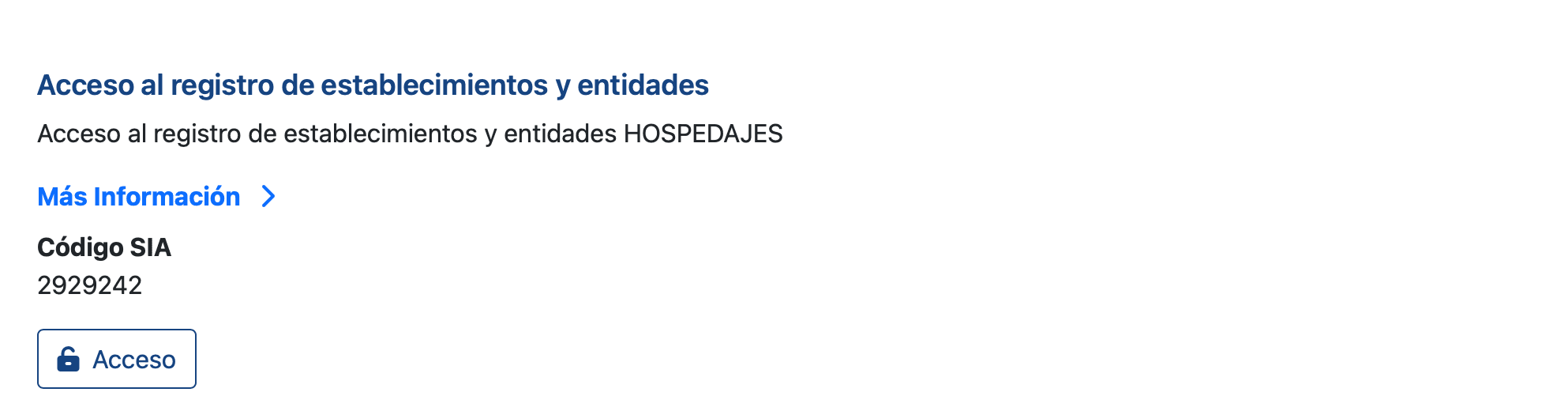
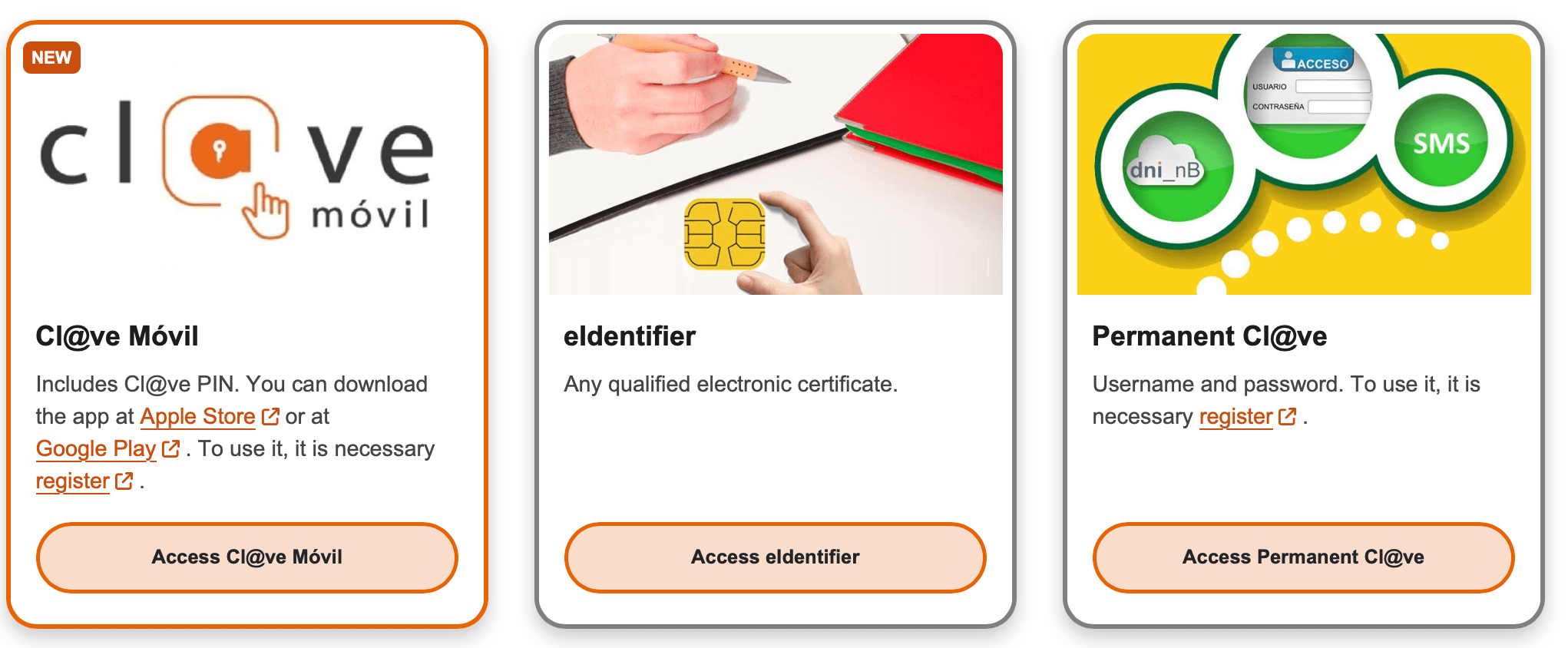
Authenticate with Cl@ve or digital certificate
Choose your identification method: Cl@ve PIN, DNIe / Electronic Certificate, Clave Móvil, or Clave Permanente. You'll also need Autofirm@ or Cl@ve Firma installed to digitally sign the application.
If you don't have a digital certificate, Cl@ve PIN or Cl@ve Móvil work fine for regular access. The certificate is only required to sign the initial registration.
Fill in the registration form
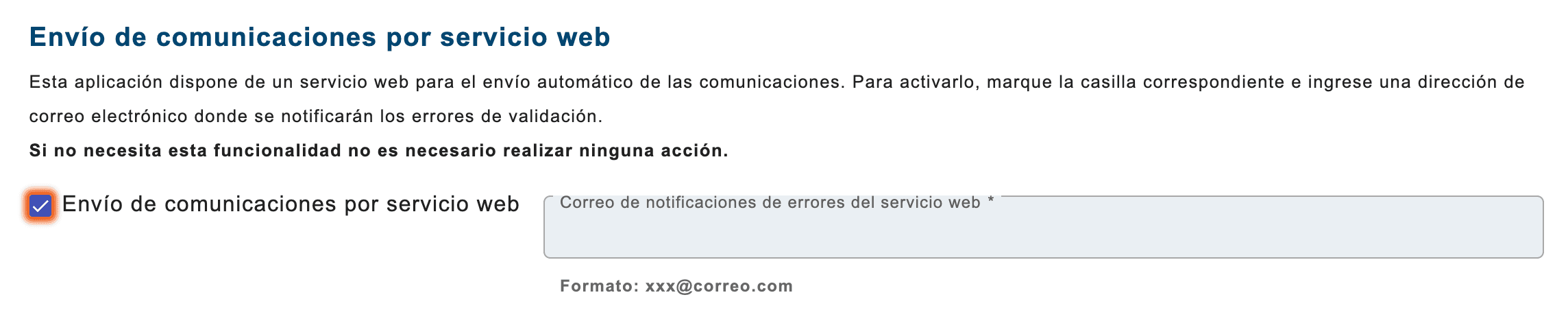
Click 'Rellenar Formulario' and enter your property and owner details. Make sure to check the box 'Envío de comunicaciones por servicio web' — without it, SES Peregrino won't be able to submit guest reports on your behalf. If you're already registered and need to update your information, click 'Acceder' instead.
Didn't check the box when you first registered? You can enable it later: log in with your certificate, click 'Acceder' next to 'Mis datos registrados', check the box, and click 'Guardar'.
Receive your codes and credentials
You'll receive a confirmation email from the Ministry with your registration number, landlord code (código de arrendador), and establishment code (código de establecimiento). A second email (from no-reply_hospedajes@ses.mir.es) will contain your webservice username and password. The username follows the format NIF/CIF followed by 'WS' (e.g., 74587985KWS). Save all 4 values — you'll need them to set up the app.
If you don't receive the second email, check your spam folder. You can also look up your username under the 'Usuario de webservice' section on the platform.
Find your details if you lose them
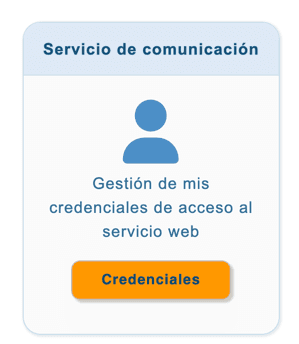
Your landlord code is under 'Mis datos registrados', next to your entity name. Your establishment code is in 'Mis datos registrados' → 'Lista de establecimientos'. Your webservice username and password are managed under the 'Usuario de webservice' section, where you can also change your password.
The webservice password is shared across all establishments under the same landlord code. If you change it, it affects all of them.
Set up encrypted storage
The app requires you to create an encryption password before submitting any guest data. This protects guest records stored on your device for the legally required 3-year retention period. Choose a strong password and save your recovery code.
If you forget this password and lose your recovery code, encrypted guest records cannot be recovered.
Scan your first guest
When a pilgrim arrives, scan their QR code from the All Caminos app, or enter their data manually. Review the information on screen before submitting.
Pilgrims using All Caminos can share a QR code with all their data pre-filled — saves you typing.
Submit to the Ministry
Tap submit and the app sends the guest data to SES.HOSPEDAJES. You'll see confirmation within a couple of minutes. An encrypted copy is automatically saved for your records.
You can check submission status at any time from the submissions list.
Ready to get started? Download the app.